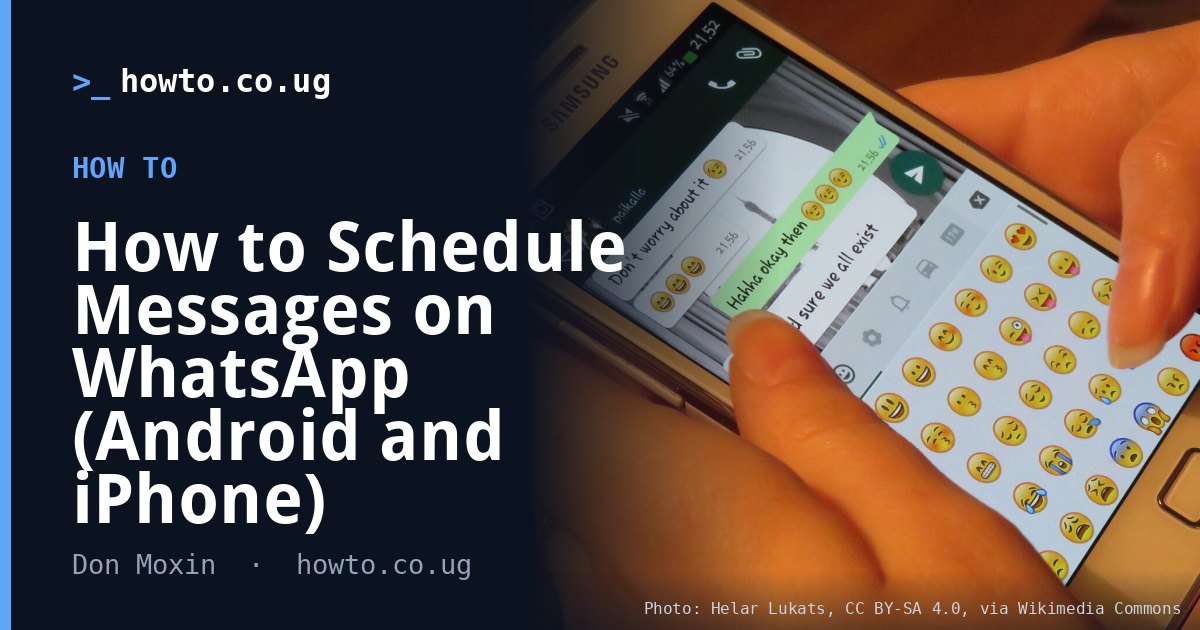
How to Schedule Messages on WhatsApp (Android and iPhone)
Type your message in any chat, then long-press the send button. If a date and time picker appears, pick a time from 10 minutes to 14 days ahead and confirm. WhatsApp began rolling this out on iPhone and Android on 25 November 2026, so if long-pressing does nothing, your account doesn't have it yet.
WhatsApp finally has built-in scheduled messages. TechCrunch reported the global rollout on iOS and Android on 25 November 2026. You type, long-press send, pick a time, done.
For many of us in Uganda this matters. The 7am message to staff, the rent reminder, the “happy birthday” at midnight: all of it can now go out without you being awake or online.
How do I schedule a WhatsApp message?
- Update WhatsApp from Google Play or the App Store.
- Open a chat or a group.
- Type your message, or pick a photo or video.
- Long-press the send button.
- Pick a date and time, then confirm with the green button.
You can schedule from 10 minutes to 14 days ahead. Not later, not sooner.
TechCrunch says text, photos and videos work. WABetaInfo reported in the Android beta that links work too, and that it works in both one-to-one chats and groups.
How do I check if my WhatsApp has it yet?
Just try it. Type a word in any chat and long-press send. A date and time picker means you have it. Nothing happening means your account doesn’t have it yet.
I could not find anything that says when Ugandan accounts get it, and neither TechCrunch’s report nor my other sources give region details. So the long-press test is the only reliable check.
There is no switch to flip. 9to5Mac reported that the iPhone beta had no way to enable the feature manually. So don’t burn data downloading “unlocked” WhatsApp APKs from random sites. Honestly, skip that. You risk your account for something that arrives free in an update.
Does my phone need to be on or have data?
Not when the message goes out. TechCrunch says scheduled messages send even if your phone is off or has no coverage. Beebom says WhatsApp sends the message from its servers, and WABetaInfo says it goes out even if the app is closed.
That is useful when the network is on and off, or your Tecno’s battery dies overnight. You still need data at the moment you schedule it. WABetaInfo’s beta report says the messages stay end-to-end encrypted.
I found no figures on how much data scheduling uses, so I can’t give you a UGX cost.
How do I see or delete a scheduled message?
Open the chat info screen, or the group info screen for a group. 9to5Mac says pending messages are listed there and you can delete them. It also says a confirmation appears in the chat that only you can see.
Recipients can’t see that a message was scheduled, and they are not notified if you delete it.
Can you edit one? TechCrunch says that is unclear. My advice: delete it and schedule a new one.
What are the limits?
- Time window: 10 minutes to 14 days.
- Media: in the iPhone beta, 9to5Mac reported one photo or video per scheduled message. That is from the beta, so the final version may differ.
- Groups: in the same beta report, only members present when you schedule receive the message. Anyone who joins later does not.
- Not covered by my sources: voice notes, documents, WhatsApp Business, and the minimum Android or iOS version. Test these yourself before you depend on them.
What if my account doesn’t have it yet?
First, update WhatsApp and test the long-press again in a few days. That costs nothing.
Second, use the plain fallback: set a phone alarm with a label like “Send rent reminder to Sarah” and send it by hand. Boring, but it works on any phone, including an older Infinix or itel with little storage.
Third, a word of caution. You will find many third-party “scheduler” apps. I haven’t tested any, and my sources don’t cover them, so I won’t recommend one. On a phone with mobile money installed, I would not hand an unknown app access to my WhatsApp. If you do try one, check who made it and read the reviews first. Never share your WhatsApp login or verification codes.
Also be careful with older guides. Many say WhatsApp can’t schedule at all. That is now out of date.
Quick tips
- Test the long-press before relying on it for something important, like a client follow-up.
- After scheduling, check the pending list in chat info.
- Schedule a few minutes early. My sources don’t say how exact the delivery time is.
Details may still change as the rollout continues. This guide reflects reports available as of November 2026.
Frequently asked questions
Can I schedule a WhatsApp message on Android?
Yes, if your account has the new feature. Type the message, long-press send, and pick a date and time. If nothing appears, update WhatsApp and try again later.
How far ahead can I schedule a WhatsApp message?
From 10 minutes to 14 days ahead, according to TechCrunch (November 2026).
Will the message send if my phone is off?
Yes. TechCrunch says scheduled messages send even if your phone is off or has no coverage.
Will people who join a group later get my scheduled message?
No, according to the 9to5Mac report on the iPhone beta. Only members present when you schedule it receive it. I couldn't confirm this for the final release.
Will the other person know I scheduled the message?
No. WABetaInfo's beta report says recipients can't see that a message was scheduled, and they are not notified if you delete it.
Sources
- TechCrunch: WhatsApp now lets you schedule messages in group and individual chats (2026-11-25)
- WABetaInfo: WhatsApp is rolling out scheduled messages on Android beta (2026-10-12)
- 9to5Mac: WhatsApp starts testing scheduled messages on iPhone (2026-10-22)
- Beebom: WhatsApp message scheduling rolling out, how it works (2026-10-14)